 Kristina ;D
How to Check If Your Website Is Mobile Friendly
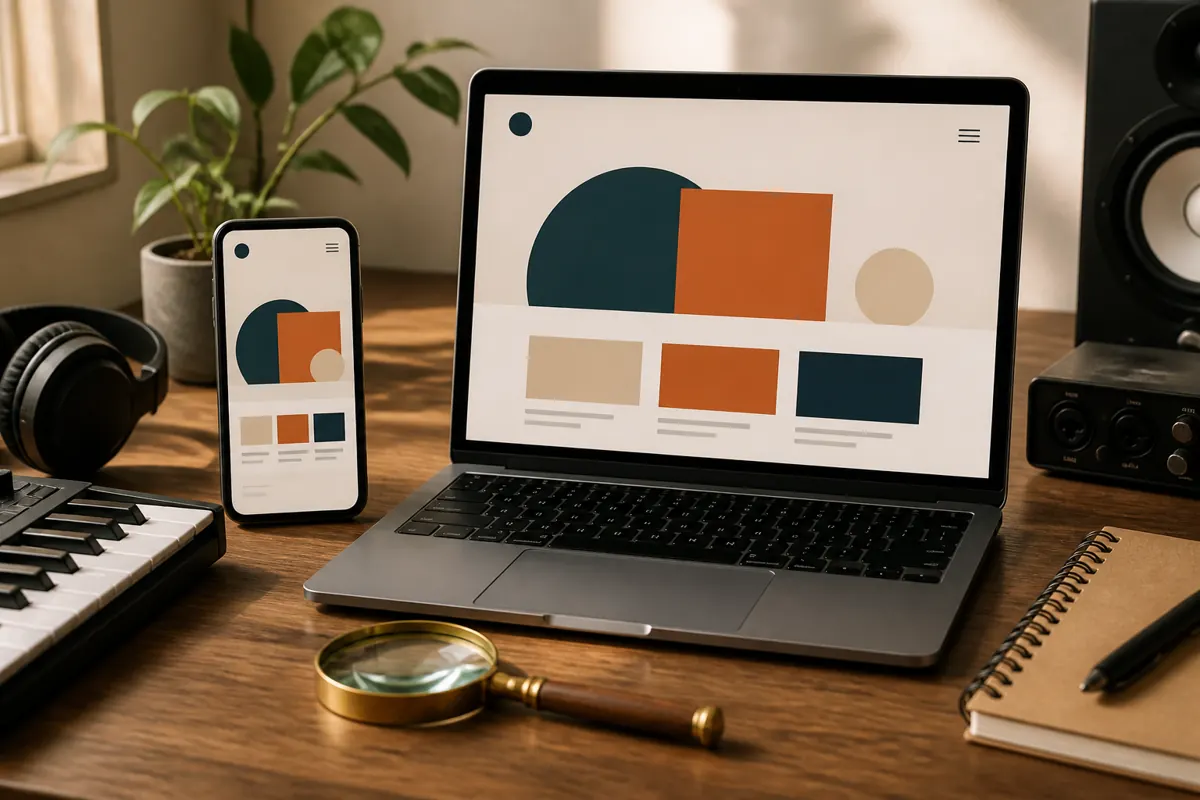
A website is mobile friendly when a visitor on a phone can read the text, tap the buttons and finish a task without zooming, pinching or scrolling sideways. The best way to check is to use the site yourself on a real phone, with one hand, as a visitor would.
Why this matters
For many sites, most visitors arrive on a phone, from a message, a social post or a search. If the page is hard to use there, they leave, even if the desktop version is lovely. Search engines often use the mobile version of a page when they evaluate it, so a weak mobile version can affect your visibility.
The ten-minute test
Open your site on your own phone and go through this list.
- Read the first screen. Is it clear what you offer and what to do next?
- Check text size. Can you read it without zooming? Is there enough space between lines?
- Tap every button and link. Are they large enough, and far enough apart to avoid mistakes?
- Open the menu. Does it open and close easily? Can you reach all main pages?
- Scroll the whole page. Does anything run off the edge of the screen or overlap?
- Turn the phone sideways. Does the layout still work?
- Fill in the form. Does the right keyboard appear for email and phone fields? Is the send button visible?
- Look at images. Do they fit the screen and load quickly?
- Close and open the site on mobile data. How long does it take to be usable?
- Ask someone else to try. Their first reaction is valuable.
Test on more than one device
Phones differ in screen size, browser and age. If you can, test on a small phone and a large one, on both common operating systems, and on an older device. Browser tools on a computer can simulate different screens, which helps, but they do not replace a real device, because touch, speed and keyboards behave differently.
What commonly breaks
| Problem | Why it happens | Fix |
|---|---|---|
| Text too small | Fixed sizes designed for a big screen | Use a comfortable base size and flexible units |
| Buttons too close together | Layout copied from desktop | Increase the tap area and spacing |
| Sideways scroll | A wide image, table or element | Make elements fit the screen width |
| Menu hard to use | Hover effects that do not work on touch | Use a simple tap menu |
| Pop-ups covering content | Windows designed for large screens | Remove them or make them small and easy to close |
| Slow loading | Large images and many scripts | Compress images and remove extras |
Design for a thumb
On a phone, people mostly use one thumb. Important actions should be easy to reach and clearly visible. Keep forms short, make the most important button obvious and avoid layouts that require precise tapping. Put the key message at the top, because the first screen is small, and the visitor decides quickly whether to continue.
Tables, forms and long text
Some content is harder on small screens. Wide tables can be rearranged into cards or short lists. Long forms can be split into steps. Large blocks of text become easier to read when split with headings and short paragraphs. If a part of your site is difficult on a phone, ask whether the content really needs that format.
If you use a builder or a template
Most modern tools produce mobile layouts automatically, but they are not always right. Check the mobile preview and adjust spacing, text size and the order of sections. If a feature cannot be made to work well on a phone, consider replacing it. For issues with speed, read how to check website speed.
Make it a habit
Check on a phone every time you add a new page or section. A page that looks fine on your computer may break when you add a long title or a wide image. A short test before publishing prevents most problems. It also fits into your website launch checklist.
A realistic example
Imagine a visitor who sees your link in a message while waiting for a bus. They open it with one hand, on a slow connection, and have about a minute. If the first screen shows a large photo that takes long to load and a tiny menu icon, they may close the page. If it shows a short headline, a clear button and text they can read, they might continue, or save the page for later. Designing for that moment, not for a large monitor in a quiet office, is what mobile friendliness really means.
Small details that make a big difference
- Phone numbers and email addresses that can be tapped to call or write.
- Address links that open a map application.
- Forms that remember sensible defaults and show the right keyboard.
- Text that wraps instead of forcing sideways scrolling.
FAQ
Do I need a separate mobile site?
Usually not. A single responsive site that adapts to the screen is the common approach.
Is a desktop browser preview enough?
It is a good first step, but test on a real phone before you launch.
What size should buttons be?
Large enough to tap comfortably with a thumb, with space around them so neighboring links are not pressed by mistake.
Does mobile friendliness affect search?
It can, because search engines evaluate the mobile version of pages. Usability on a phone also affects whether visitors stay.
How often should I test?
After each notable change and at least a few times a year.